Choose a local image
Drop a JPG, PNG, or WebP file into the image pixelator, or open the built-in demo.
1–64 px blocks · nearest neighbor
Pixelate image files with clean square blocks instead of soft blur. The whole-image pixelator previews every block-size change locally and exports JPG, PNG, or WebP without a watermark.
JPG, PNG, or WebP · Up to 100 MB
Real block sizes
These three outputs use the same 1200 × 800 source. Each version is downsampled to a smaller color grid and enlarged with nearest-neighbor rendering, so the square edges stay crisp. Use the comparison before you pixelate image details more aggressively.
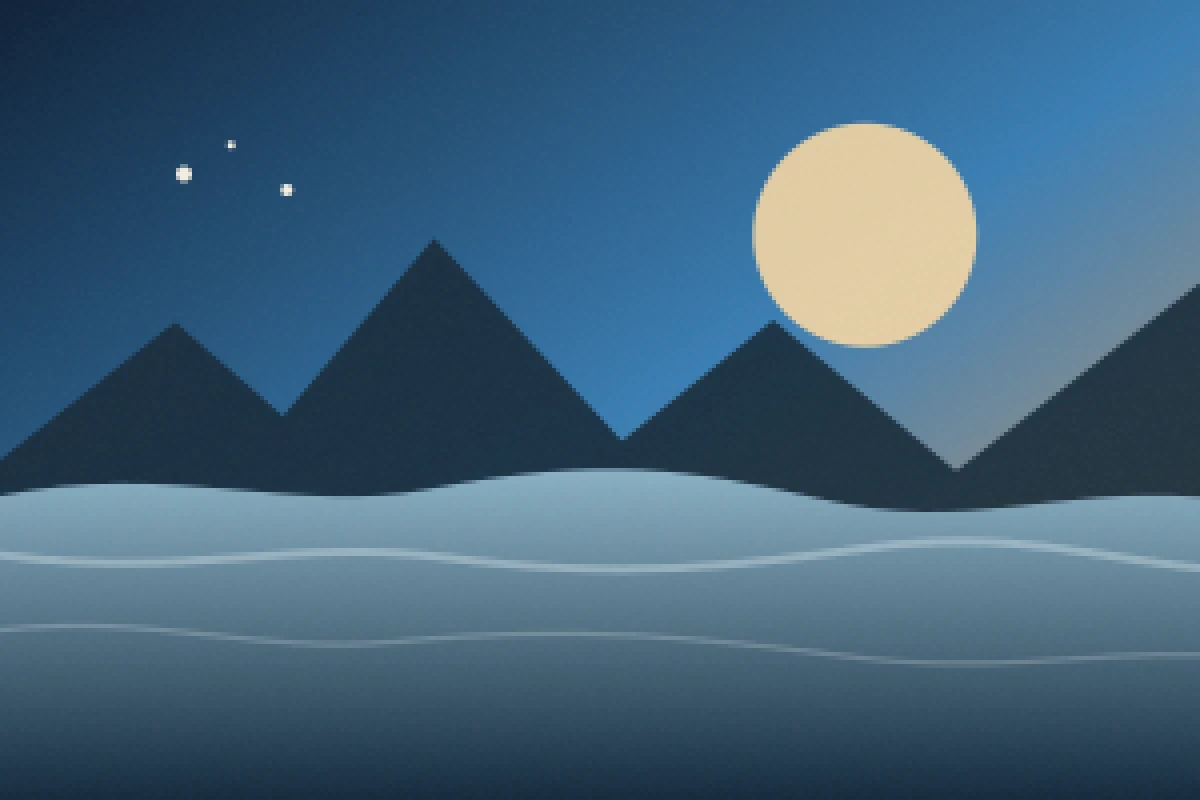
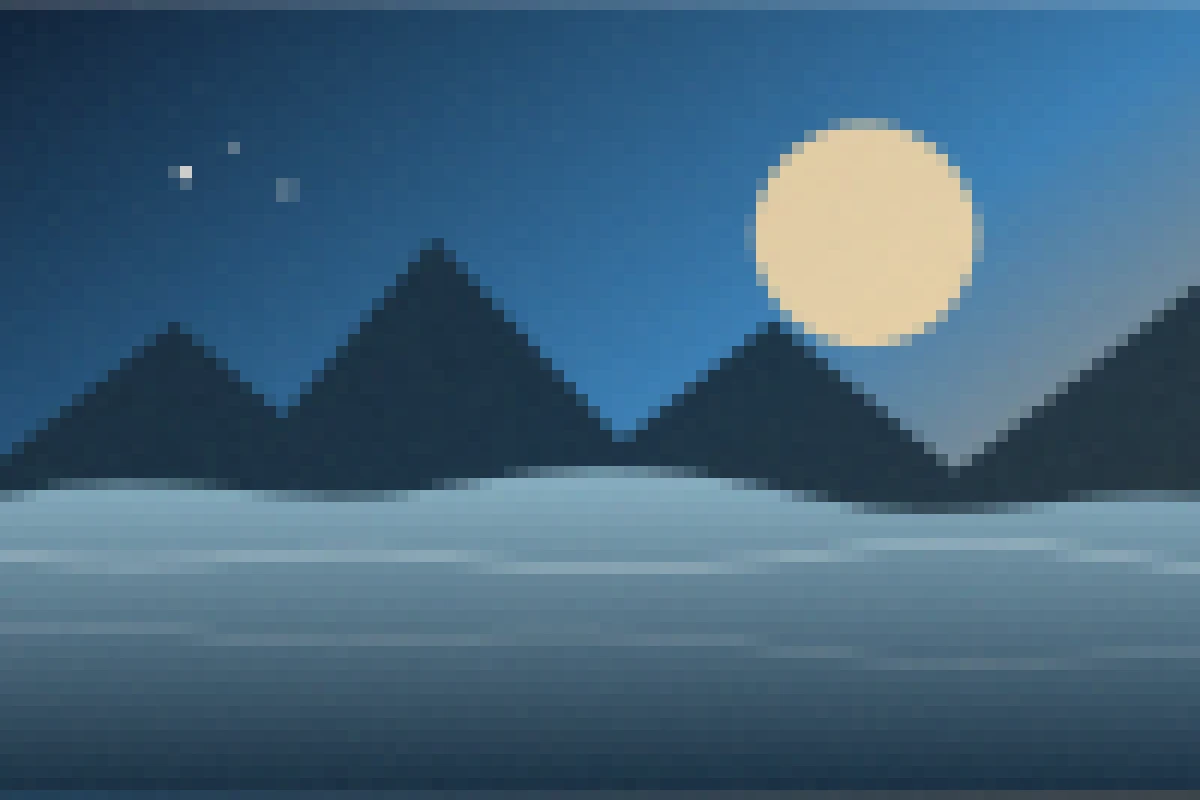
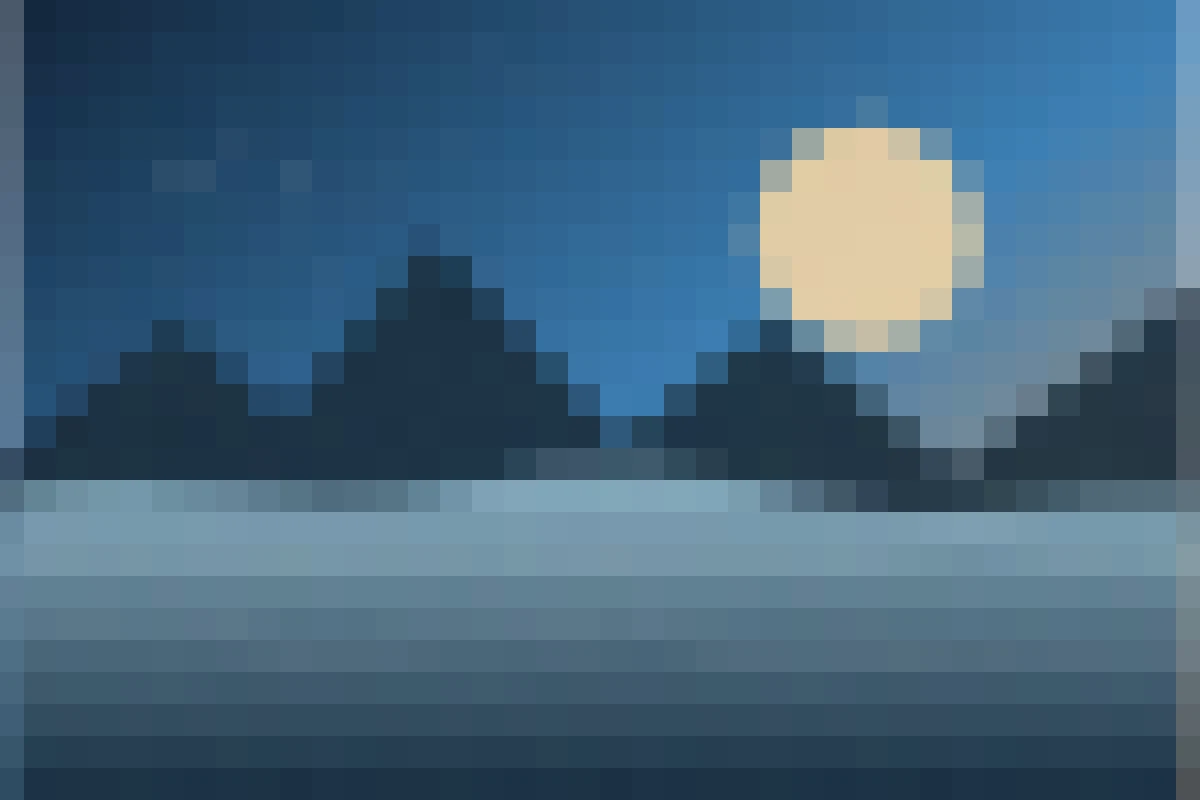
Three visible steps
The Pixelate Image tool keeps the original and result beside the same controls, so you can stop before important shapes or text disappear.
Drop a JPG, PNG, or WebP file into the image pixelator, or open the built-in demo.
Move Pixel block from 1 to 64 px and compare the whole pixelated image with the original.
Keep the source format or choose JPG, PNG, or WebP, then download a separate processed file.
Under the hood
To pixelate image content, the browser draws the source into a smaller temporary canvas. A 12 px setting uses roughly one sampled color for each 12-by-12 area. The tool then enlarges that small grid to the output dimensions with image smoothing disabled.
That second step is nearest-neighbor rendering: each sampled value expands into a hard square instead of blending into nearby colors. The result looks like a mosaic or retro display rather than a Gaussian blur. Output quality and format are separate from block size.
Choose the right treatment
Do not treat every loss of detail as the same operation. The Pixelate Image workflow is creative first; security-sensitive redaction needs a stronger method.
| Treatment | Visible behavior | Best for | Privacy strength |
|---|---|---|---|
| Pixelation | Groups color into square blocks | Retro style, avatars, intentional mosaic | Not strong redaction |
| Blur | Softly blends neighboring detail | De-emphasis and background softness | Not strong redaction |
| Resize | Changes pixel dimensions | Smaller output and layout fit | Does not intentionally hide content |
| Solid mask | Overwrites an area with opaque pixels | Passwords, IDs, financial data | Preferred when applied correctly |
Security warning
Pixelation can hide detail from casual viewing, but weak blocks preserve patterns. Text length, repeated characters, faces, license plates, colors, and layout may remain inferable. Reconstruction tools can also guess plausible content from context.
For passwords, account numbers, private documents, or anything that must not be recovered, overwrite the region with a solid opaque shape and verify the flattened export. This tool pixelates the entire image and does not offer a redaction selection brush.
Creative uses
Use Pixelate Image when the visible square grid is part of the design or test, not when you need selective censorship. When you pixelate image files for a consistent set, compare every source at the same block size.
Large blocks simplify modern photography into a deliberate low-resolution aesthetic. Combine moderate blocks with the original colors before trying extreme abstraction.
A 6–16 px block can make a recognizable icon feel less photographic. Check the result at the small size where the avatar will appear.
Pixelate image fixtures to test OCR, moderation previews, lazy-loading placeholders, and interfaces receiving poor source material.
Square blocks add spatial damage without changing saturation or contrast. Use the Deep Fried Meme Generator when you also want extreme color and compression.
Pixel art truth
The Pixelate Image tool creates a pixel-art effect, but it does not hand-author pixel art. Artists deliberately place pixels, control silhouettes, simplify anatomy, choose palettes, and clean individual clusters. Automatic downsampling makes mathematical choices rather than artistic ones, so pixelate image content only when that automated look fits the design.
This release also does not add Game Boy or NES palettes, grayscale conversion, dithering, AI subject detection, or region painting. It provides a predictable whole-image nearest-neighbor effect whose block size you control.
Export cleanly
After you pixelate image content, choose the container based on transparency, compatibility, and whether extra lossy artifacts help or hurt the square grid.
Preserves transparency and hard block edges losslessly. It can be larger for full-color photos, but it avoids extra lossy artifacts.
Works broadly for opaque photos, but low quality can soften or ring around pixel edges. Transparent areas are placed over white.
Supports transparency and lossy encoding, often balancing a compact file with the crisp visual grid needed for web use.
Related workflows
Researched questions
These answers cover nearest-neighbor edges, block size, whole-image limits, formats, mobile support, real pixel art, and the security risk of weak redaction.
Choose a JPG, PNG, or WebP file, then increase Pixel block until the squares reach the desired size. Compare Result and Original, choose an output format, and download the separate pixelated image. Processing stays in the browser.
The tool downsamples the source into a smaller grid and enlarges that grid with nearest-neighbor rendering. Each sampled color becomes a visible square block. Larger blocks remove more spatial detail but keep hard edges between neighboring squares.
Not in this release. The current image pixelator applies the effect to the entire image. It does not include a brush, selection rectangle, automatic face detection, or separate block size for individual regions.
Do not rely on pixelation for strong redaction. Shapes, text length, colors, and patterns may remain inferable, and weak pixelation can sometimes be attacked with reconstruction methods. Cover highly sensitive information with a solid opaque shape before sharing.
It creates a pixel-art-style effect from an existing image, but hand-authored pixel art involves deliberate placement of individual pixels, shapes, and a limited palette. This tool does not invent a palette or redraw the subject as an artist would.
Some viewers rescale images with bilinear or bicubic smoothing, especially at non-integer zoom levels. View the file at 100% or an integer zoom. The downloaded pixels remain hard-edged, but the display application controls how they are shown.
Use 2–6 px for a subtle mosaic, around 8–16 px for a clear retro or avatar effect, and larger blocks for deliberate abstraction. The source dimensions matter: a 12 px block removes more detail from a small image than from a large camera photo.
Yes, when exporting as PNG or WebP. JPG cannot store transparency and places transparent areas over white. Check semi-transparent shadows and edges in the preview before converting formats.
Yes, in current mobile browsers with Canvas support. Large camera photos can use significant memory, so reduce resolution or choose a smaller source on an older phone if processing becomes slow.
No. The image is decoded and rendered locally in this browser tab, and the tool has no image upload endpoint. The download contains the processed pixels without a site watermark, while the original file remains separate.
Ready for visible blocks
Open Pixelate Image to pixelate image details with one block-size control, then compare the real result before download.